
How to Authorize Us to Access Your CRA Account
To prepare and file your tax return, the Canada Revenue Agency (CRA) requires that you authorize us as your representative.
If you have access to your CRA My Account, you may authorize us using one of the two methods below:
Option 1 – We Send the Authorization Request
Please provide the required identification details so we can submit the authorization request to CRA on your behalf.
Step 1 – Provide Required Information that it mentioned below:
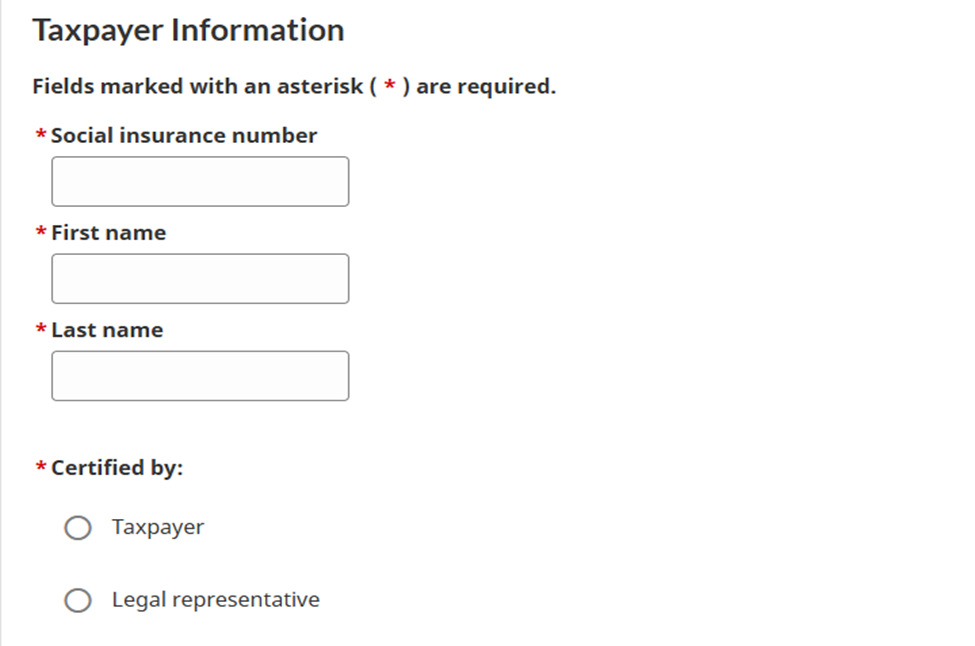
Step 2 – Approve the Request in CRA My Account
1. Log in to your CRA My Account.
2. Click on ‘Profile’ from the left sidebar.
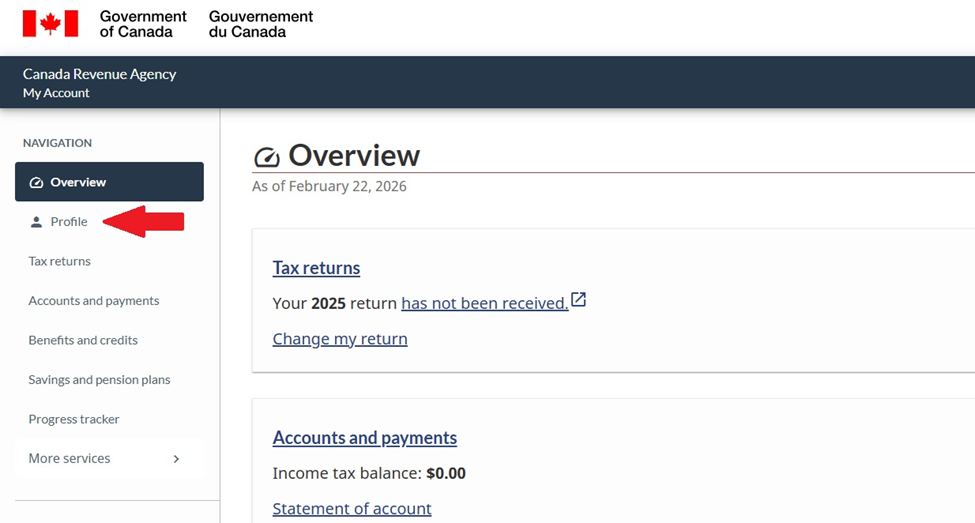
3. Select ‘Authorized representative(s)’.
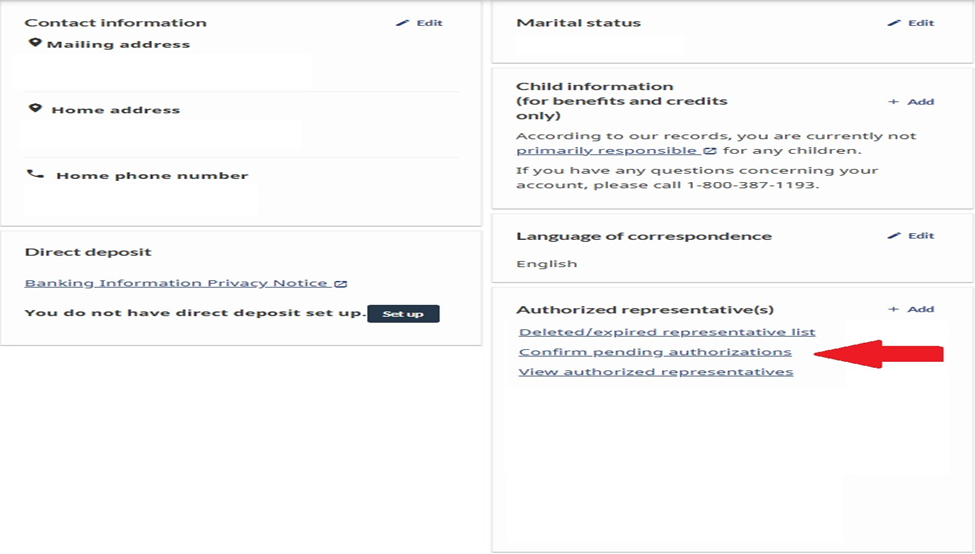
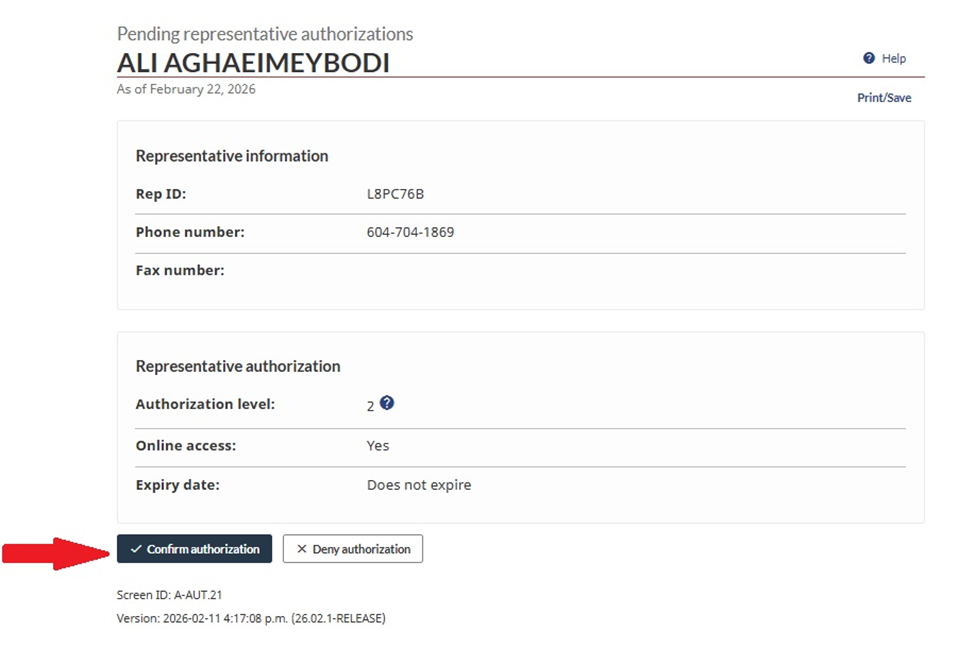
4. Click on ‘Confirm pending authorizations’.
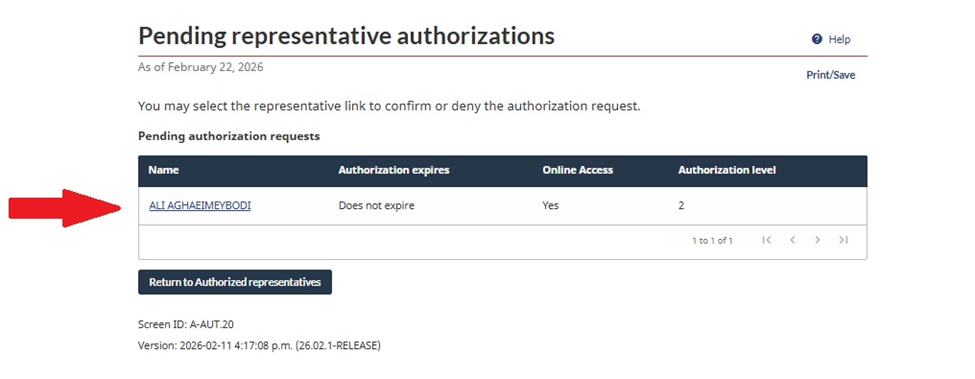
5. Select your tax pro name and approve the request.
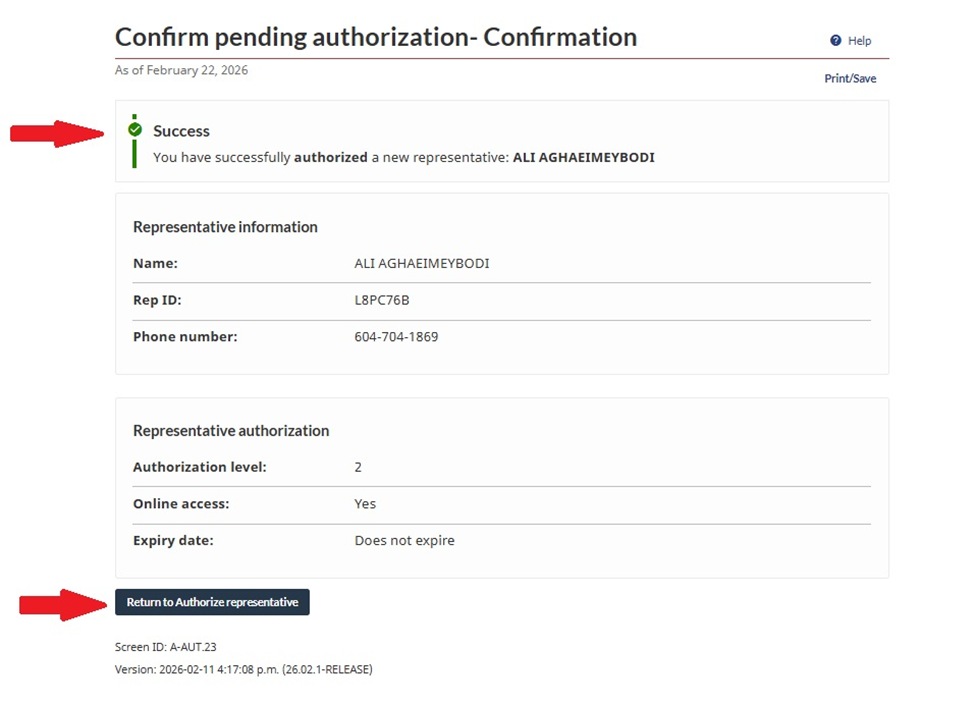
Please ensure you complete it successfully and see the message below:
Authorization Level
To prepare and file your tax return, Level 2 authorization is required.
We recommend selecting Level 2 access with no expiration date.
You may revoke authorization at any time after your tax return is completed.
Option 2 – You Add Us Directly from CRA My Account
1. Log in to CRA My Account.
2. Click on ‘Profile’.
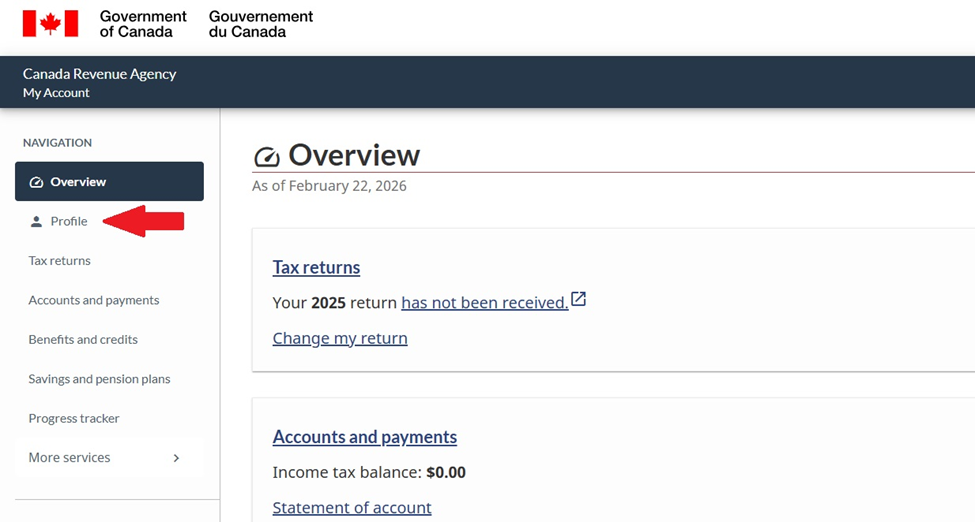
3. Select ‘Authorized representative(s)’.
4. Click on ‘+ Add’.
5. Click ‘Start’.
6. Enter our Rep ID (provided separately).
7. Click ‘Search’, then ‘Next’.
Authorization Level
To prepare and file your tax return, Level 2 authorization is required.
We recommend selecting Level 2 access with no expiration date.
You may revoke authorization at any time after your tax return is completed.
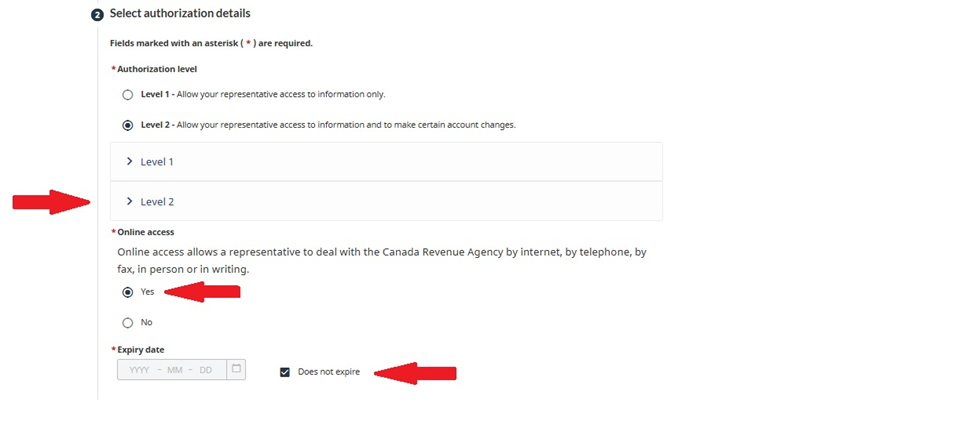
8. Select Level 2 access (recommended with no expiration date).
Confirmation Statement
Please select the following confirmation:
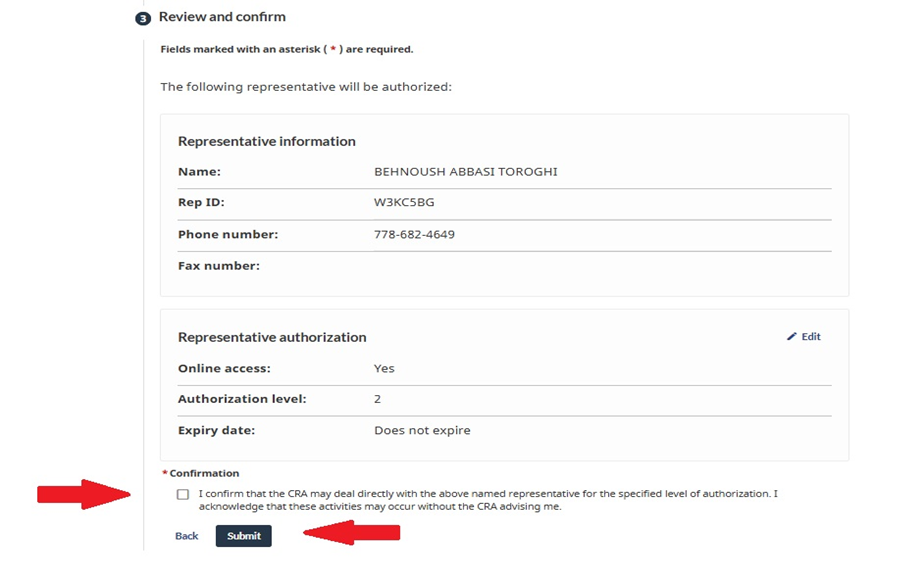
“I confirm that the CRA may deal directly with the above named representative for the specified level of authorization. I acknowledge that these activities may occur without the CRA advising me.”
Then click Submit.